

Have you ever had such a wonderful chat with ChatGPT and then couldn’t find it again?
You scroll. You search. You panic a little.
We’ve all been there.
The fact is as follows: your artificial intelligence conversations are entering your virtual brain.
According to a Gartner survey (2024), 62 percent of professionals use AI chat history in their daily work.
And that is why work becomes slow when chats are lost.
This is why it is necessary to comprehend the AI chatbot conversation archive.
The guide makes it easy to manage, search, store, export, and organize your chat history irrespective of whether you are tech-savvy or not.
Forget making your AI hide you; make it work.
What Is an AI Chatbot Conversations Archive?
An AI chatbot archive is a place where all your previous chats with an AI are stored safely such as ChatGPT.
Imagine it as a computerized catalog of all of your discussions, and it is structured in such a way that you can always go back to any thought, response, or project at any time you find it necessary.
You will be able to scroll infinitely and still have everything in a single, easy-to-access location in your archive.
All your questions, drafts, prompts, thoughts, or problems that you were able to solve using AI remain visible, just like a notebook that is never lost.
Related: https://heyeve.ai/blogs/why-law-firms-should-adopt-ai-chatbots-2025/
Why It Matters?
Old messages are not the only way to define your AI chat history.
It is the personal body of knowledge.
Research conducted by McKinsey reveals that individuals spend as much as 20 percent of their working days searching for information that they themselves have generated.
A systematic archival deposit corrects that issue.
Here’s why it matters:
You save time
You can recall past answers immediately rather than begin with a blank.
You stay organized
Work, ideas, research, and personal tasks remain apart and easy to handle.
You keep your learning
Any discussion will be a reference to be used in the future.
You reduce stress
No more “Where did that chat go?”
You build long-term value
Your archive is your documentation of your development, imagination and learning.
In simple words:
Archiving makes your AI-powered life well-organized, safe, and convenient.
Who Uses It?
Practically, anyone can use an AI chatbot conversation archive, although the largest users are:
Students
- Backup lessons, summaries, and notes.
- Revisit past explanations
Business Owners
- Monitor ideas, plans, and marketing documents.
- Save customer support chats
Writers & Creators
- Store descriptions, scripts, and content drafts.
- Retain other copies of their work.
Customer Support Teams
- Maintain chat logs
- Training on previous questions.
Developers
- Store code fragments and error solutions.
- Monitor discussions on projects.
Researchers
- Create long-term databases of knowledge.
- References and insights in stores.
When you are an AI user, the archive soon becomes a part of your working process, as it helps you remain productive, focused, and organized.
Managing Chats in ChatGPT
Controlling dialogue is the ultimate way to have an organized and effective AI chatbot dialogue journal. ChatGPT can provide you with easy functions to remove, store, search, and retrieve chats to ensure that you are maintained in order with none of the confusion.
Delete a Chat
In case you do not need a conversation, you can delete it quickly.
How to delete a chat:
- Move your cursor over the chat on your sidebar.
- Click the three dots
- Select Delete
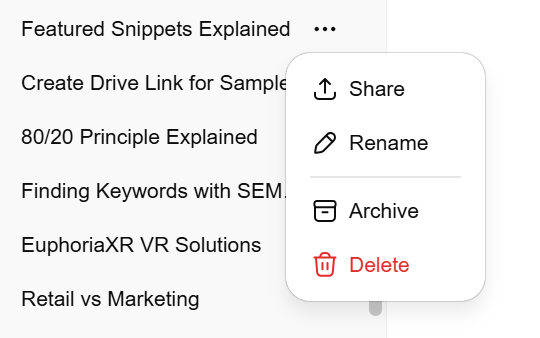
This maintains your working environment to be clean and focused.
What Happens After Deleting?
It has been removed from your chat list.
- It cannot be restored
- It will not show up in search
- It will not be emerging in your archive.
Simply put: delete = permanent.
In case you believe that you might require the chat in the future, then it is safer to archive it.
Archive a Chat
Archiving will hide a conversation from the primary list, but it will never be deleted.
It fits perfectly when it comes to arranging long-term assignments, old notions, or discussions that one would wish to revisit.
How to archive a chat:
- Hover over the conversation
- Click the three dots
- Choose Archive
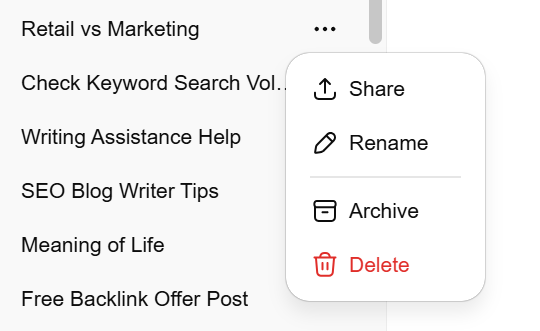
Your chat, however, goes into your AI chatbot conversations archive, where it rests safely and out of view.
Restore or Unarchive Chats
To save a chat back into your AI chatbot discussion history, you will do exactly this, without any error, using the current ChatGPT interface:
On Web
- Go to Settings
- Click Data Controls
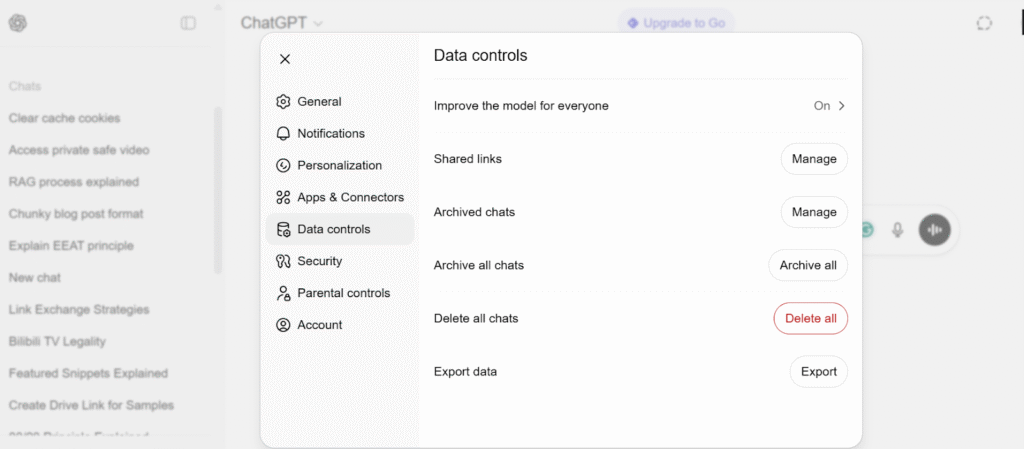
- Click Archived Chats: click Manager.
- Locate the discussion desirable.
- Click the Unarchive button
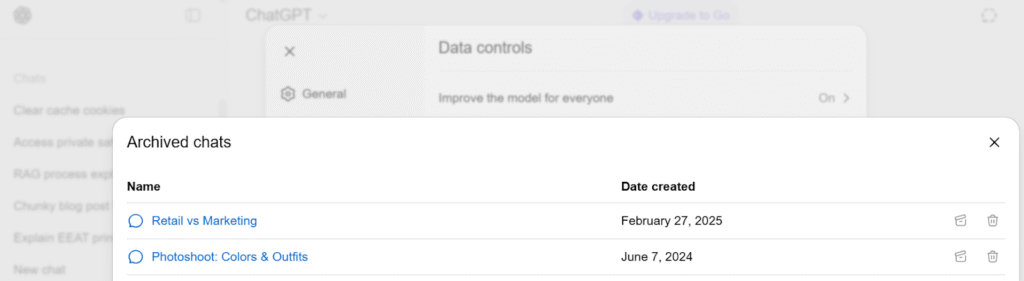
After unarchiving it, it automatically gets created in your main chat list on the left-hand side.
Suggested Read: https://heyeve.ai/blogs/best-ai-chatbots-in-2025/
Search Your Chat History
One of the quickest methods of locating ideas, drafts, or answers that lie buried in the depths of your AI chatbot conversation history is to search through your old conversations.
ChatGPT does it on the web and on mobile.
How to Search Chats?
ChatGPT provides an integrated search bar that is used to find any previous conversation at any time.
You can search by:
- Keywords (“SEO draft”)
- Topics (“marketing plan”)
- Names (“client project”)
- Dates (month/year)
- Phrases you remember
All you need to do is type what you remember, and ChatGPT gives an identical chat right away.
Search on the Web
On desktop:
- Open ChatGPT
- Look at the left sidebar
- Click on the List of Search engines at the top.
- Type your keyword
- Choose the conversation.
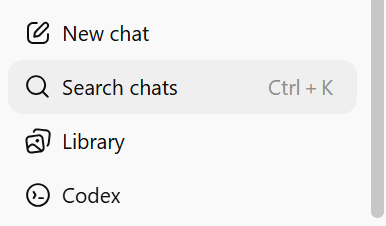
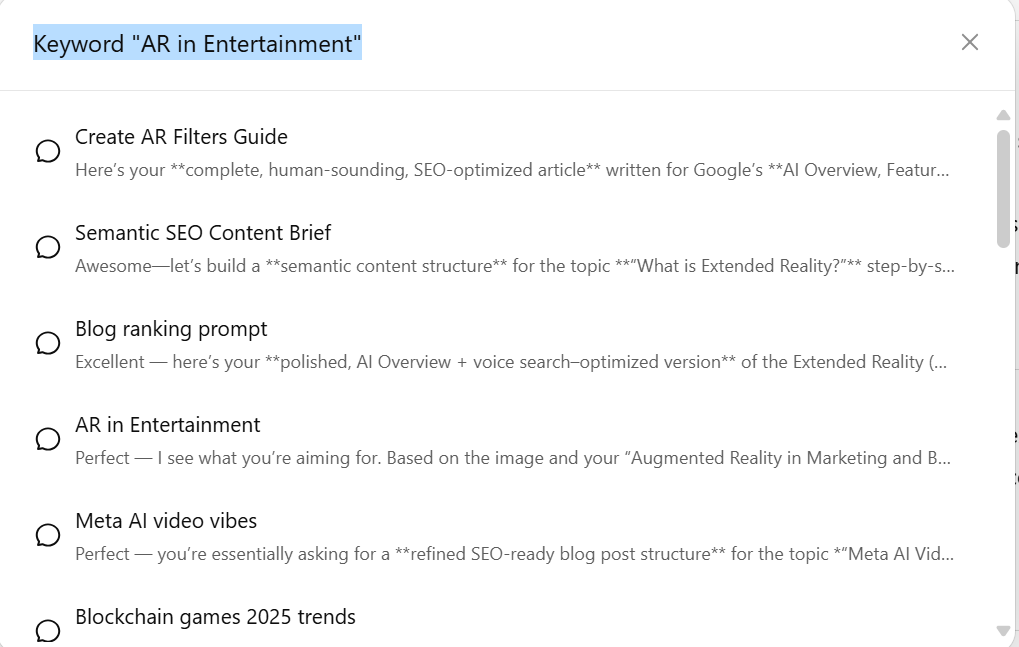
Interactive searches are real-time, with no additional action.
Search on Mobile
On iOS or Android:
- Open the ChatGPT app
- Tap the menu icon (☰)
- Tap the Search field
- Enter your keyword or phrase
- Click on the desired result
The mobile search is identical to the desktop, but it has a simplified and fast-accessible design.
Sidebar History Tips
Export All Chats (Including Archived)Recent chats are only listed in the sidebar, but older chats can be visibility in further detail.
These are tips that allow you to get everything quicker:
- Be specific in terms of keywords to use.
- Name chats immediately after their creation to be searched easily.
- No chats will be displayed in the sidebar; you have to use the search or archive preferences.
- You can use the search bar or scroll upwards in case you are not able to see older chats.
A good naming system allows your AI chatbot system to be simpler to navigate.
Exporting Chat History
In case you need a complete offline copy of all your conversations, including archived conversations, you can export your entire chat history.
This is useful for:
- Backups
- Research notes
- Client documentation
- Personal knowledge storage
- Moving data between tools
Your export includes:
- All chats
- All archived chats
- Account settings
- Chat metadata
Export All Chats (Including Archived)
ChatGPT will allow you to access all your conversations spanning your whole history in a single file.
This includes:
- Archived chats
- Active chats
- Deleted chats (unless you have just exported them)
It gets packaged as a downloadable package.
Step-by-Step Export Process
The following is how you can export all your chat history:
- Open ChatGPT
- Go to Settings
- Click Data Controls
- Select Export Data
- Click Confirm Export
- Wait for an email from OpenAI
- Latent download link by clicking on the email.
- File the ZIP file to your device.
Inside the ZIP, you’ll find:
- A history of every one of your conversations.
- JSON and HTML files
- Archived chats included
This will provide you with the full external backup of the AI chatbot conversations archive.
Read Also: https://heyeve.ai/blogs/ai-chatbot-development-2025/
Troubleshooting Archives
Sometimes, you will be taken to your archived chats that are not in the place you expect.
This is not uncommon, and it can be easily remedied by a couple of simple steps.
Missing Archived Chats
In case a chat is not seen in your AI chatbot conversations archive, the most frequent causes are:
- Lagging in the synchronization of devices.
- The interface of ChatGPT has been temporarily going through an update, which allows interacting with a chat using the latest version.
- Cached browser data
- In a different account.
- Failure to check the revised whereabouts.
- (Settings- Data Controls- Managing Archived chats)
- Stable or underdeveloped internet connection.
Removing chats found in the archives is most of the time not removed. They have simply been covered with a sync or display problem that is just temporary.
Quick Fixes
- The page or the processes can be refreshed or reloaded. This tends to recall archived chats instantly.
- Log out and log back in. This causes the archive to re-spread.
- Clear your browser cache. Obsolete menu items may be concealed behind the old files.
- Check the correct location. Click the Settings- Data Controls- Manage Archived Chats.
- Test a different device or web browser. On different platforms, the interface will load differently.
- Check to ensure that you are in the right account. Several users unintentionally change accounts and fail to notice.
In case these measures are not effective in resolving the problem, seek assistance.
These quick fixes do work in the majority of cases.
Organizing AI Chat History
An archive of chatbot conversations arranged by AI not only saves time but also allows your workflow to be smoother.
The following are some of the basic methods of ensuring that everything is organized and easily accessible.
Folders, Labels & Tags
On one hand, ChatGPT does not operate with physical folders; on the other hand, you may make your own in terms of titles, labels, and tags.
Examples:
- [Client] Website Copy Draft
- [Ideas] Content Hooks
- [Learning] Python Notes
This facilitates categorization of related conversations.
Naming System
Give your chats a name immediately after you place your chats.
An identifying title simplifies the speed of search.
Use a simple structure:
Category + Task + Detail
Examples:
- SEO Competitor Breakdown January
- YouTube Script Outline Fitness Inc.
- Client Sarah Marketing Plan
It is easy to find what you want in your archive if there are clear, predictable names.
Search & Filter Tools
Here are the habits that you can use to make your archive more efficient:
- Use specific keywords. Rather than searching the email, use the email onboarding copy.
- Add dates to important chats. For example: 2025 Launch Strategy.
- Use consistent tags. Some of them are Research, Draft, Client, and Ideas.
- Rename or pin active chats. This makes your current work convenient to access.
With a proper naming system and searching tools, besides, your AI chatbot conversations archive becomes strong and simple to control.
Suggested: https://heyeve.ai/blogs/chatgpt-api/
Best Practices for Maintaining a Chat Archive
The key to keeping your data in order, safe, and convenient to review is in the maintenance of a healthy and reliable AI chatbot conversation archive. As you have the correct habits, your archive would serve as a trusty assistant rather than a disorganised list of discussions.
Backups
You should manage to export your chat history regularly so that you will constantly have an offline version of your valuable conversations. Most people can go with a monthly or quarterly export. This provides you with a safe log of all your jobs, thoughts, and conversations, in case something occurs in your online account.
Data security
The chat history has some of the data you might need to secure, particularly in case you work, plan, and/or do personal work with the assistance of AI. Also, update your devices, apply strong passwords, enable two-factor authentication, and save the exported files in a safe place. Just like any other valuable digital document, treat your archive.
Retention policy
Choose which chats you would like to maintain as long-term and the ones you are no longer interested in. This enables you to clean your history as well as makes your archive easier to explore. Most users maintain running projects in the primary chat list and save older or used discussions in the archive to ensure that nothing gets lost or is difficult to locate.
Conclusion
Your AI chatbot conversations archive is not the folder of the previous messages. It is an expansion of your thoughts, work, learning, and problem-solving. With such backup, keeping your chats safe, intentionally dividing them, and sticking to a basic retention strategy, you can make your archive a credible source of knowledge, which you can consult at any time. The better you keep it, the better it gets.